Power BI vs Excel: Which Reporting Tool Is Right for Your Business?

Summary: Both Power BI and Excel are Microsoft tools, but they serve very different purposes. Excel is built for calculations, financial modeling, and manual data work. Power BI is built for live dashboards, automated reporting, and sharing insights across teams. This blog compares Power BI vs Excel on features, performance, cost, and the latest 2026 updates to help you decide which tool fits your business needs. |
Many businesses rely on Excel for reporting and data management. However, as data volumes grow and teams need faster, more visual insights, Power BI is becoming the preferred reporting platform. Understanding the real difference between Power BI and Excel is essential before deciding which tool is right for your business in 2026.
Speak with a Data Analytics Specialist
Book a Free ConsultationPower BI and Excel are both powerful Microsoft tools, but they serve different purposes. Excel excels at calculations, financial modeling, and ad-hoc analysis, while Power BI is designed for interactive dashboards, automated reporting, and business intelligence at scale. Understanding their strengths can help organizations choose the right tool for their reporting and analytics needs.
| Power BI | Excel |
Type | Business Intelligence Platform | Spreadsheet Application |
Best For | Live dashboards, automated reports | Calculations, modeling, ad-hoc analysis |
Data Refresh | Automatic (scheduled or real-time) | Manual |
Collaboration | Live link sharing | File-based sharing |
Copilot / AI | In-report Copilot, mobile Copilot, web modeling Copilot | Edit with Copilot, Python in Copilot, Work IQ |
Learning Curve | Moderate | Low |
Cost (2026) | Free Desktop; Pro from $14/user/month | Included in Microsoft 365 |
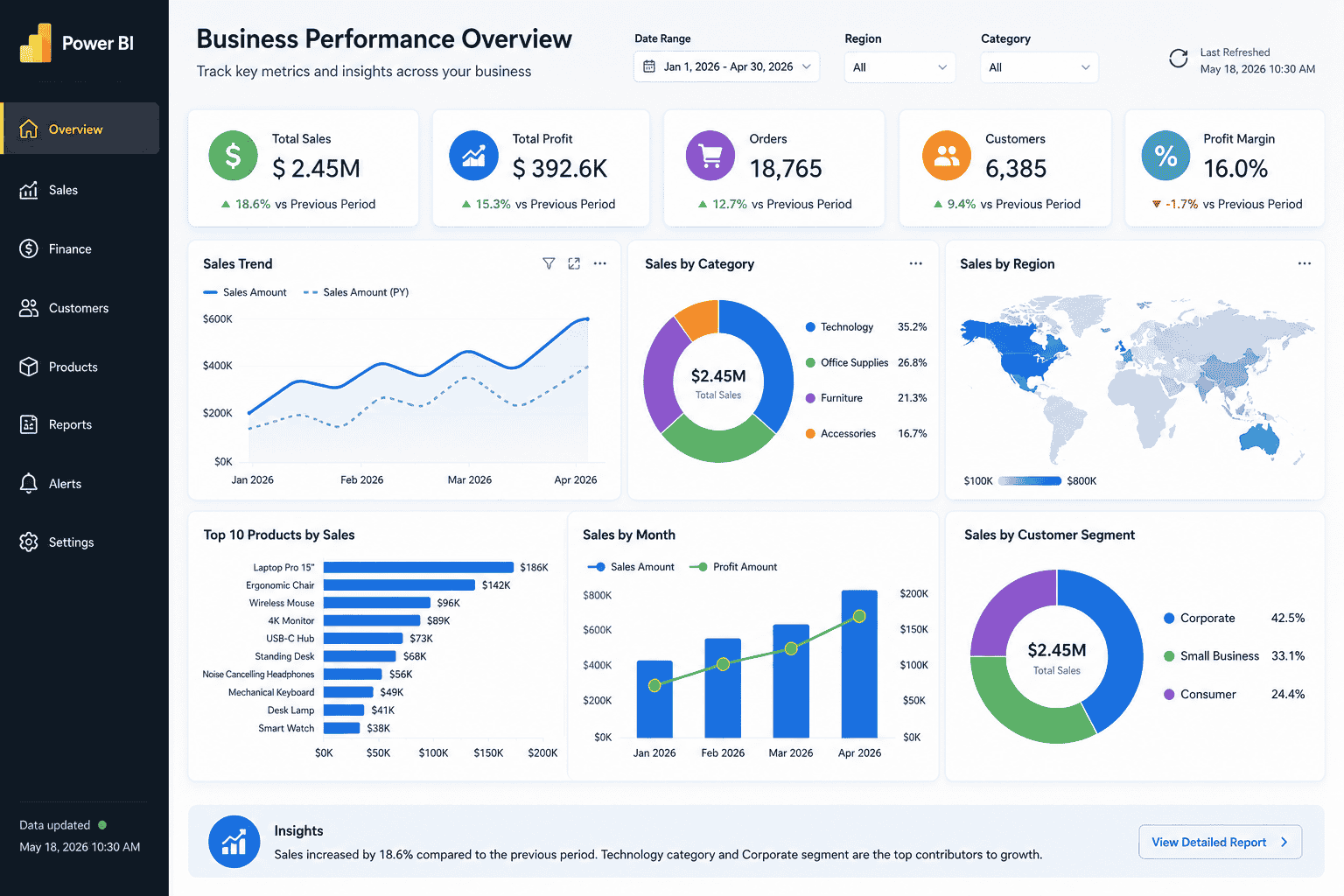
Power BI is Microsoft's business intelligence and analytics platform. It connects to multiple data sources, transforms raw data into interactive dashboards, and keeps those reports updated automatically without any manual effort.
As of 2026, Power BI is deeply integrated with Microsoft Fabric, Microsoft's unified analytics platform. This means Power BI reports can now connect directly to OneLake data storage in Direct Lake mode, combining the speed of imported data with the freshness of live queries, without traditional performance trade-offs.
Connects to 100+ data sources including Excel, Dynamics 365, Salesforce, SQL Server, and cloud services
Builds interactive, visual dashboards with drill-through pages and cross-filtering
Automatic data refresh on a schedule or in real time via Power BI Service
Built-in DAX (Data Analysis Expressions) for advanced calculations and measures
Power Query for data transformation, cleaning, and shaping
Native integration with Microsoft 365, Dynamics 365, SharePoint, and Azure
Microsoft Fabric integration with Direct Lake mode for enterprise-scale analytics
In-report Copilot, mobile Copilot, and web modeling Copilot (generally available in 2026)
Visual calculations and custom totals now generally available (May 2026)
Copilot narrative summaries that automatically explain chart trends and insights
Share reports via a live link through Power BI Service
Full mobile access via iOS and Android apps
Power BI is a powerful business intelligence platform that enables organizations to analyze data, create interactive dashboards, and make informed decisions. However, like any technology solution, it comes with both advantages and limitations. Below are the key pros and cons of Power BI that businesses should consider before implementation.
Pros of Power BI | Cons of Power BI |
Handles large datasets (tens of millions of rows) | Requires learning Power Query and DAX |
Live, automatic data refresh | Cannot edit or enter data directly (read-only) |
Connects to 100+ data sources simultaneously | Power BI Pro license required for sharing ($14/user/month) |
Interactive dashboards with drill-through and cross-filtering | Steeper learning curve compared to Excel |
Native Dynamics 365 and Microsoft 365 integration | Not suitable for row-level financial modeling |
Copilot AI summaries and in-report assistance (2026) | Copilot features require specific plan tiers |
Microsoft Fabric integration with Direct Lake mode | Microsoft Fabric migration needed for enterprise P-SKU customers |
Strong mobile app with Copilot on mobile (2026) | Premium capacity starts at high monthly cost for enterprises |
Talk to our Power BI experts to discover the right reporting solution for your business.
Schedule a Free ConsultationMicrosoft Excel is a spreadsheet application used for organizing, calculating, and analyzing data. It has been the standard business data tool for over 30 years and remains the most widely used for financial modeling, budgeting, and data preparation across industries.
In 2026, Excel has received significant Copilot upgrades. The Edit with Copilot feature now supports step-by-step reasoning, a Chat/Edit switcher for more control, and Python in Copilot (available from April 2026), which allows users to run advanced data transformations and generate visualizations directly inside Excel without leaving the spreadsheet. The experimental =COPILOT formula (in preview) can now fetch live web data into cells.
Formulas, functions, and complex multi-step calculations
Pivot tables and pivot charts for data summarisation
Power Query for data import, transformation, and shaping
Financial modeling tools: What-If Analysis, Goal Seek, Data Tables, Scenario Manager
Conditional formatting and data validation rules
Charts and basic visualization
Edit with Copilot: step-by-step reasoning, Chat/Edit switcher, Work IQ context (2026)
Python in Copilot for advanced analysis and visualization inside Excel (April 2026)
=COPILOT formula for web-connected data retrieval (preview, 2026)
VBA (Visual Basic for Applications) for custom automation
Works natively with all Microsoft 365 applications
Excel remains one of the most widely used tools for data analysis, financial modeling, and everyday business reporting. While it offers flexibility and ease of use, it also has limitations when handling large datasets, collaboration, and real-time reporting. Below are the key pros and cons of Excel to help you assess where it fits best within your organization.
Pros of Excel | Cons of Excel |
Familiar to almost all business users worldwide | Reports must be updated and shared manually |
No additional license cost (included in Microsoft 365) | Unreliable with large datasets over 500,000 rows |
Full data entry, editing, and correction capability | Sharing creates multiple file versions and conflicts |
Best-in-class for financial modeling and budgeting | Static charts with no interactive filtering |
Fast for ad-hoc, one-off analysis | Not designed for automated, scheduled reporting |
Copilot with Python and Work IQ now available (2026) | Copilot features require a Microsoft 365 Copilot license |
Highly flexible formula and calculation engine | Limited native connection to live external data sources |
Power BI and Excel are both powerful Microsoft data tools, but they are designed for different purposes. Excel excels at calculations, financial modeling, and ad-hoc analysis, while Power BI is built for interactive dashboards, automated reporting, and enterprise-scale business intelligence. The comparison below highlights the key differences between Power BI and Excel in 2026 to help you determine which solution best fits your business needs.
Feature | Power BI | Excel |
Primary Purpose | Business intelligence and live dashboards | Spreadsheet analysis and calculations |
Data Refresh | Automatic (scheduled or real-time) | Manual only |
Data Volume | Tens of millions of rows | Reliable up to ~500,000 rows |
Data Sources | 100+ connectors (CRM, ERP, databases, APIs) | Spreadsheets and manual imports |
Report Sharing | Live link via Power BI Service | File attachment via email or SharePoint |
Visualization | Interactive visuals, drill-through, custom marketplace | Standard charts and graphs |
Data Editing | Read-only (cannot edit values) | Full editing and direct data entry |
Financial Modeling | Limited | Excellent |
Learning Curve | Moderate (Power Query and DAX required) | Low (widely known by most users) |
Collaboration | Single live version for all users | Multiple file versions, version conflicts |
Cost (2026) | Free Desktop; Pro $14/user/month | Included in Microsoft 365 subscription |
Mobile App | Full iOS and Android app with Copilot | Basic mobile view and edit |
Dynamics 365 Integration | Native, real-time connector | Manual export required |
Copilot / AI (2026) | In-report, mobile, web modeling Copilot | Edit with Copilot, Python, Work IQ |
Microsoft Fabric | Deep integration, Direct Lake mode | Works with Fabric via OneLake connections |
Power BI and Excel serve different purposes in the modern data ecosystem. While Excel is best suited for calculations, financial modeling, and ad-hoc analysis, Power BI excels at interactive reporting, data visualization, and business intelligence. Below is a detailed comparison of both tools across the most important evaluation criteria.
.png)
Excel performs well for small to medium datasets, typically up to a few hundred thousand rows. Beyond that, performance degrades quickly. Files open slowly, formulas become unreliable, and pivot tables start failing on large row counts.
Power BI is built on a columnar storage engine (VertiPaq) that compresses and processes large datasets efficiently. In 2026, Microsoft Fabric's Direct Lake mode takes this further, allowing Power BI to query data stored in OneLake directly, without first importing it, combining high performance with real-time freshness.
Excel: Reliable up to ~500,000 rows; degrades beyond that
Power BI: Tens of millions of rows with Fabric Direct Lake mode for enterprise scale
Winner - Power BI: It is purpose-built for large-scale data and gains further performance advantages through Microsoft Fabric integration in 2026. Excel has a hard ceiling that growing businesses will eventually hit.
Excel works best with data already in a spreadsheet or manually imported through Power Query. Connecting to live external sources requires additional configuration and does not refresh automatically.
Power BI includes over 100 built-in connectors and links directly to Dynamics 365, Salesforce, SQL Server, Azure, SharePoint, Google Analytics, and many other platforms. Multiple data sources can feed into a single report at the same time, refreshing automatically without any manual work.
Excel: Spreadsheets and manual imports; limited live connectivity
Power BI: 100+ live connectors with scheduled or real-time automatic refresh
Winner - Power BI: For businesses with data spread across a CRM, ERP, and financial system, Power BI eliminates the manual work of consolidating data that Excel requires whenever a report is prepared.
Sharing an Excel report means attaching a file to an email or uploading it to SharePoint. Each recipient gets a static snapshot of the data at that moment. When multiple people work from different copies, version conflicts quickly become a problem.
Power BI reports are shared as live links through the Power BI Service. Everyone who opens the link sees the same version of the data, automatically updated. Access permissions are managed centrally, and there are no version conflicts or outdated file copies in circulation.
Excel: File-based sharing, static data snapshots, version conflicts common
Power BI: Live link sharing, single version for all users, centralized access control
Winner - Power BI: For teams sharing reports across departments or with leadership, Power BI eliminates version problems and keeps everyone looking at the same data at the same time.
Excel provides standard chart types (bar, line, pie, and scatter) that are static and update only when the data is manually refreshed. Charts look clean and work well for standalone reports but offer no interactivity for the reader.
Power BI offers a substantially larger library of visual types, including geographic maps, decomposition trees, waterfall charts, and custom visuals from the Power BI AppSource marketplace. All visuals are interactive. Clicking a data point filters all other visuals on the page simultaneously. In 2026, Copilot narrative visuals automatically generate a written summary explaining the key trends, differences across categories, and drivers of change in a chart, without the reader having to interpret the data themselves.
Excel: Static standard charts; no interactive filtering
Power BI: Interactive visuals, drill-through, custom marketplace, AI narrative summaries (2026)
Winner - Power BI: The interactivity gap between the two tools has widened in 2026 with the addition of Copilot-generated chart explanations and visual calculations now available to all users.
Both tools now have significant Copilot integration, but their capabilities differ. Power BI Copilot in 2026 includes:
In-report Copilot: Ask questions about your report data in natural language and get direct answers grounded in your Power BI semantic model
Mobile Copilot: Copilot is now available inside the Power BI mobile app with expanded input (up to 10,000 characters)
Web Modeling Copilot: Rolling out in June 2026, allows users to analyze and improve data models, rename tables and columns, create relationships, and generate DAX measures using natural language
Copilot Narrative Visual: Automatically writes a text summary of any chart, calling out trends, outliers, and key drivers
Edit with Copilot: Step-by-step reasoning for complex multi-step edits, with a Chat/Edit switcher for more control over how Copilot interacts with the workbook
Python in Copilot: Available from April 2026; Copilot can now run Python-powered data transformations and generate visualizations directly inside Excel
Work IQ Context: Copilot in Excel automatically pulls context from the user's emails, meetings, and files to make more accurate, relevant edits
=COPILOT Formula: In preview; fetches live web data into Excel cells using a formula
Note: Full Copilot features in both tools require a Microsoft 365 Copilot license (available as an add-on). Basic Copilot features are included in standard Microsoft 365 plans, but advanced capabilities require the paid Copilot tier.
Winner: Tied, different use cases. Power BI Copilot is stronger for exploring and explaining business data in dashboards. Excel Copilot is stronger for data transformation, formula work, and analysis tasks inside a spreadsheet.
Excel is the gold standard for financial modeling and remains unmatched for this specific use case. The grid structure, flexible formula engine, and scenario analysis tools (Goal Seek, What-If Analysis, Data Tables, and Scenario Manager) are specifically designed for building budgets, three-year forecasts, sensitivity analyzes, and financial models.
Power BI uses DAX for calculations, which is powerful for aggregations and creating reusable measures across reports. However, DAX is not designed for the row-by-row, cell-level work that financial modeling demands. Trying to build a financial model inside Power BI is the wrong approach and creates more problems than it solves.
Excel: Purpose-built for financial models, budgets, and scenario analysis
Power BI: Strong for calculated measures and KPIs, but not financial modeling
Winner – Excel: No reporting tool, including Power BI, replaces Excel for financial planning and modeling. This is one area where Excel has a clear and permanent advantage.
Most business users already know Excel to a working level. The barrier to getting started with basic tasks is essentially zero, and more advanced features like Power Query and Power Pivot can be learned gradually over time without blocking daily work.
Power BI requires learning two new concepts before becoming productive: Power Query (for connecting and transforming data) and DAX (for creating calculations and measures inside reports). DAX behaves differently from Excel formulas in important ways, and new users typically need a few weeks of regular use before feeling comfortable. That said, the Copilot in Power BI now allows non-technical users to explore reports and ask data questions in plain language without needing to know DAX.
Excel: Low barrier to entry; most users already know the basics
Power BI: Moderate; Power Query and DAX required for full use, but Copilot reduces the barrier for report consumers
Winner – Excel: For businesses introducing new users to a reporting tool, Excel requires far less onboarding. Power BI Copilot helps non-technical users consume reports, but report builders still need DAX knowledge.
Excel is included in all Microsoft 365 Business and Enterprise plans at no extra cost, making it available to every user in a Microsoft 365 organization at no additional cost.
Power BI Desktop is free to download. To publish and share reports across the organization, Power BI Pro is required. As of April 2025, Microsoft raised the Power BI Pro price from $10 to $14 per user per month, a 40% increase that remains in effect throughout 2026. Power BI Premium Per User (PPU) is priced at $24 per user per month, up from $20, providing larger dataset limits, 48 daily refreshes, and advanced AI features. Enterprise organizations can use Microsoft Fabric F-SKU capacity licensing, which starts at $262/month for the F2 tier and scales with workload.
Excel: No additional cost for Microsoft 365 subscribers
Power BI: Free Desktop; Pro $14/user/month; PPU $24/user/month; Fabric F-SKUs from $262/month
Note: Before purchasing Power BI Pro licenses, check your Microsoft 365 admin center. Power BI Pro is included in Microsoft 365 E3 and E5 plans and in some Microsoft 365 Business plans by region. Many businesses already have access that remains unactivated.
Winner – Excel: For existing Microsoft 365 subscribers, Excel comes at no extra cost. Power BI Pro incurs an additional per-user cost, though an existing enterprise plan may already cover it.
Excel requires a manual export of data from Dynamics 365 before any reporting can take place. Reports built in Excel from Dynamics 365 data reflect the moment of that export and go stale immediately. Any update to the CRM or ERP requires a fresh export and a rebuilt report.
Power BI has a native, real-time connector for Microsoft Dynamics 365. Sales pipeline, customer service cases, finance records, and operations data all flow directly into Power BI dashboards without any manual exports. Dashboards update automatically on the configured refresh schedule.
Excel: Manual export required; Dynamics 365 data is never live in Excel
Power BI: Native real-time connector; data updates automatically from Dynamics 365
Winner - Power BI: For any business running on Microsoft Dynamics 365, the native Power BI connector is one of the most compelling reasons to adopt Power BI as the primary reporting platform. The live data connection alone saves hours of manual work each week.
Discover how Power BI can help your organization make faster, data-driven decisions.
Book a Free Power BI Consultation TodayPower BI is the right choice in the following situations:
Multiple teams need the same data regularly: Sales checking pipeline, finance checking revenue, and operations checking performance should all work from one consistent, live view. Power BI removes the need for someone to prepare and distribute a new report every week.
Data comes from more than one system: If your business uses a CRM, an ERP, and accounting software separately, Power BI connects all of them into a single dashboard automatically, with no copy-pasting between systems required.
Leadership needs real-time visibility into business performance: Directors and managers need trends, KPIs, and exceptions, not raw data. A Power BI dashboard delivers a clear, always-current view accessible from any device, including mobile.
Data volumes are growing beyond what Excel handles reliably: When Excel files start slowing down, crashing, or producing formula errors due to size, Power BI handles the scale without any performance issues.
Reports are rebuilt manually on the same data every week or month: Any report that follows a repeating pattern should be automated in Power BI. The manual rebuild cycle wastes time that Power BI eliminates.
The business runs on Dynamics 365 or Microsoft 365: Native, real-time integration makes Power BI the natural reporting layer for any Microsoft-first business.
Excel remains the better choice in the following situations:
Financial modeling and budgeting: Building three-year forecasts, budget models, sensitivity analyzes, and scenario planning belongs in Excel. Power BI cannot replicate this type of work.
Ad-hoc, one-off analysis: Quick, non-recurring data exploration is faster in Excel than building a new Power BI report from scratch. For unexpected questions that require an immediate answer, Excel wins out in speed and flexibility.
Data entry and editing are required: Power BI is a read-only reporting tool. Any workflow that involves manually entering, correcting, or cleaning data belongs in Excel for that stage of the process.
Small teams with simple, contained data: A small business tracking monthly sales in one spreadsheet does not gain enough from Power BI to justify the learning curve or license cost. Excel is sufficient at this scale.
Data already lives in spreadsheet format: When files arrive from external parties (accountants, suppliers, government systems) in spreadsheet format, Excel is the right place to process and analyze them.
Most businesses that adopt Power BI continue using Excel alongside it, and this is the approach Microsoft actively encourages. The two tools are designed for different tasks and integrate directly with each other through multiple connection points.
A common setup in 2026 looks like this:
Raw data arrives from external sources and is cleaned in Excel using Power Query.
Cleaned and prepared data is loaded into Power BI for dashboards and reporting.
Finance teams continue using Excel for budgets, models, and financial planning.
Leadership and department managers use Power BI for live KPI tracking and performance visibility.
Power BI also includes an "Analyze in Excel" feature that connects a Power BI data model directly to an Excel pivot table. This allows teams to perform familiar Excel-style ad-hoc calculations on the same live, centralized data that powers the Power BI dashboards, without exporting anything or breaking the data connection. In 2026, both tools also connect to Microsoft Fabric's OneLake, meaning data engineers can prepare data once and analysts can access it from either Excel or Power BI without creating duplicate copies.
Note: The question is not "Power BI or Excel." For most growing businesses, the right answer is to use both, with each tool doing the job it was designed for.
Plan | Cost (2026) | Best For |
Power BI Desktop | Free | Building reports on a single machine; no sharing capability |
Power BI Pro | $14/user/month | Publishing and sharing reports; standard business use |
Power BI Premium Per User (PPU) | $24/user/month | Large datasets, 48 daily refreshes, advanced AI features |
Microsoft Fabric F2 | $262/month (capacity) | Small enterprise workloads, entry-level Fabric capacity |
Microsoft Fabric F64 | $5,250/month (capacity) | Large enterprise; includes Copilot and free viewer access |
Note: Power BI Pro pricing increased from $10 to $14 per user per month in April 2025, a 40% increase that remains in place in 2026. If your budget models were built before that date, the figures will be incorrect. Power BI Pro is included in Microsoft 365 E3 and E5 plans. Always check your existing Microsoft 365 admin center before purchasing standalone licenses, as many businesses are already paying for access without realizing it.
Choosing between Power BI and Excel depends on what your business currently needs from its reporting, and how those needs are likely to grow over the next 12 to 24 months.
Reporting is managed by one or two people with contained, spreadsheet-based data
Financial modeling, budgeting, and scenario planning are the primary data use cases
The team is small, and reports are not distributed widely across the organization
Manual updates and file sharing are still manageable at current volume
Multiple teams need access to the same business data on a regular basis
Data comes from more than one system and consolidation is taking up manual time each week
Reports are rebuilt repeatedly from the same data and the process should be automated
Leadership needs a real-time, always-current view of business performance
The business runs on Dynamics 365, Microsoft 365, or any other Microsoft platform
Finance teams need Excel for modeling while operations or sales teams need live dashboards
Data preparation and cleaning happens in Excel and business reporting happens in Power BI
The business is mid-sized and different teams have genuinely different reporting needs
If your business runs on Microsoft Dynamics 365 or Microsoft 365, a certified Microsoft partner can show you exactly how Power BI connects to your existing systems and demonstrate what your dashboards could look like, before you commit to anything. Book a free 30-minute consultation to see what is possible with the data you already have.
While choosing the right tool between Power BI and Excel is important, successfully implementing Power BI requires the right expertise. At Cynoteck, we provide end-to-end Power BI consulting services to help businesses unlock the full potential of their data.
Our Power BI experts work closely with organizations to design, develop, and deploy scalable business intelligence solutions tailored to specific business needs. Whether you are starting from scratch or looking to optimize your existing reports, we ensure a smooth and efficient implementation.
Power BI Implementation & Setup
We help you set up Power BI from the ground up, including data connections, architecture design, and workspace configuration.
Custom Dashboard Development
Build interactive, visually rich dashboards that provide real-time insights into your business performance.
Data Integration & Transformation
Connect Power BI with multiple data sources such as CRM, ERP, databases, and cloud platforms, ensuring clean and reliable data using Power Query.
DAX & Data Modeling Expertise
Create advanced calculations, KPIs, and optimized data models for high-performance reporting.
Report Optimization & Performance Tuning
Improve the speed and efficiency of your existing reports, especially when handling large datasets.
Power BI Training & Support
Empower your team with hands-on training and ongoing support to maximize adoption and usage.
Certified Microsoft experts with deep Power BI experience
Proven track record across industries
Customized solutions aligned with business goals
End-to-end support from strategy to execution
By partnering with Cynoteck, you not only adopt Power BI but also transform the way your organization uses data for decision-making.
Let our team show you how to connect, visualize, and analyze your business data more effectively.
Request a Power BI DemoExcel is a spreadsheet tool designed for calculations, data entry, financial modeling, and ad-hoc analysis. Power BI is a business intelligence platform designed for live dashboards, automated reporting, and sharing visual insights across a team. In simple terms: Excel is where you work with data, and Power BI is where you report on it. Most businesses benefit from using both tools together rather than replacing one with the other.
No. Microsoft actively develops both tools and has confirmed they serve different purposes. Power BI is not a replacement for Excel, and Excel is not being phased out. Many businesses use them side by side: Excel for detailed financial work and data preparation, and Power BI for company-wide dashboards and performance reporting. The two tools also share common technology in Power Query and DAX, making them complementary rather than competitive.
No coding is required to build basic reports in Power BI. Most report building is done through a drag-and-drop interface. To create more advanced calculations and reusable measures, users learn DAX (Data Analysis Expressions), which shares logic with Excel formulas but behaves differently in important ways. Most new users reach a productive level with DAX within a few weeks of regular use. In 2026, Power BI Copilot also allows non-technical users to explore reports and ask data questions in plain English without any DAX knowledge.
Yes. Power BI has a native, real-time connector for Microsoft Dynamics 365 that works without any manual data exports. Sales pipeline data, customer service records, finance figures, and operations data all feed directly into Power BI dashboards and update automatically on the configured refresh schedule. This is one of the strongest reasons for Dynamics 365 users to adopt Power BI as their primary reporting tool.
Power BI Desktop is free. Power BI Pro costs $14 per user per month as of 2026 (increased from $10 in April 2025). Power BI Premium Per User is $24 per user per month and includes advanced features, such as larger datasets and 48 daily refreshes. Enterprise organizations can use Microsoft Fabric F-SKU capacity licensing starting at $262/month. Power BI Pro is included in Microsoft 365 E3 and E5 plans, so check your existing plan before purchasing additional licenses.
Yes. The "Analyze in Excel" feature connects a Power BI data model directly to an Excel pivot table. This allows teams to perform ad hoc calculations and analysis in the familiar Excel environment while working with the same live, centralized data that powers the Power BI dashboards. No manual export or reformatting is required, and the data connection stays live.
Key Power BI updates in 2026 include: in-report Copilot for natural language data questions, mobile Copilot with expanded input, web modeling Copilot for improving data models using natural language (June 2026), Copilot narrative visuals that auto-explain chart trends, visual calculations and custom totals now generally available (May 2026), and deeper Microsoft Fabric integration with Direct Lake mode for enterprise-scale performance.
Businesses with data spread across multiple systems, teams that rely on regular reporting to make decisions, and organizations that have outgrown manual spreadsheet-based reporting benefit most from Power BI. It is particularly valuable for sales, finance, and operations teams that need a shared, always-current view of performance. Microsoft Dynamics 365 and Microsoft 365 users get the most immediate benefit from native integration and the ability to activate Power BI Pro at no additional license cost.

Discover the top 10 benefits of custom CRM software development for modern businesses. Learn how tailored CRM solutions improve efficiency, enhance customer relationships, and drive business growth.
We are more than just developers and consultants—we are your partners in navigating the digital landscape. Let us be the engine behind your next big success while you focus on your core vision.
Explore Opportunities! Power BI vs Excel (1).webp)